How to Use the Image Search Function in Google Photos


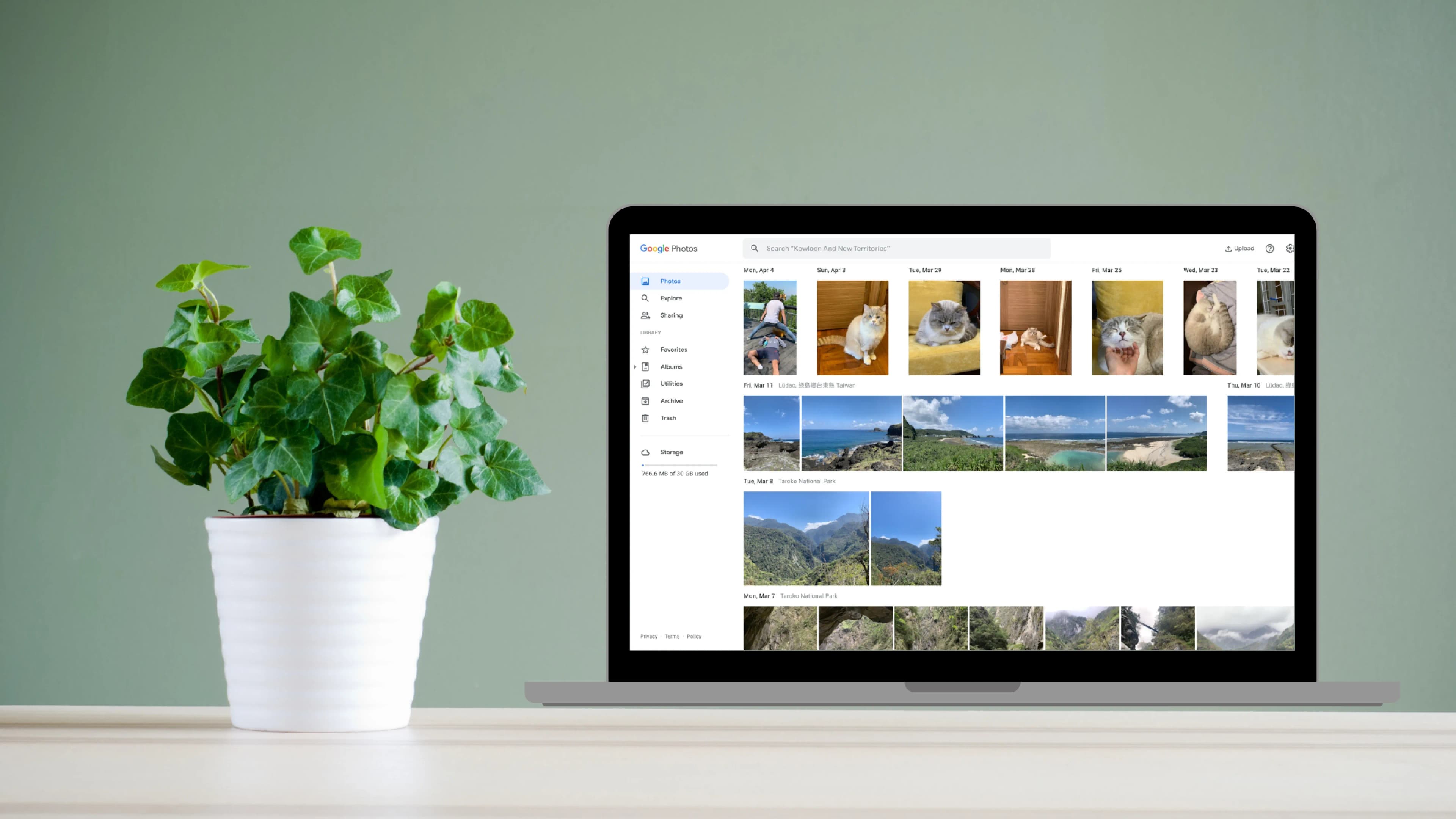
Most of us have thousands of photos on our phones, and finding one particular picture can feel hopeless: that shot of Grandpa at the dim sum table, the receipt you snapped for an insurance claim, the view from Lion Rock last spring. Scrolling back through years of photos is slow. Google Photos has a search box that does much of the work for you, because it can recognise people, places, objects and even text in your pictures without you ever tagging them. Here is how to use it well.
How Google Photos search works
When you back up photos to Google Photos, Google's image recognition analyses them in the background. It groups similar faces, reads the location data your phone saves, recognises landmarks and common objects, and picks up words that appear in images. Then, when you type something into the search bar, it looks through all of that at once.
The search features below were available at the time of writing. Some, such as face grouping, depend on your country and your settings, and Google keeps adding and changing features, so what you see may differ a little.
Searching for people and pets
Google Photos can group photos of the same face together. Once it has done this, tap the group and add a name or nickname, such as "Mum", "Ah Ma" or the name of your cat. From then on you can:
Type the name into the search bar to see every photo of that person or pet.
Combine terms, such as a name and a place or year, to narrow things down.
Browse the row of faces shown on the search screen and tap one to see their photos.
If face grouping is switched off, you can usually turn it on in the app's settings. Only names you add yourself are searchable, and they are visible only to you.
Searching by place
There are two ways Google Photos knows where a photo was taken:
Location data. Most phones save the location with each photo if location is turned on in the camera settings. These photos can appear on a map in the app.
Landmark recognition. Even without location data, Google can often recognise famous places. Try searching "Tian Tan Buddha", "Victoria Harbour" or "Tokyo Tower".
You can also search by city or district, such as "Sai Kung" or "Taipei", to find photos from a trip.
Searching for things and events
Type an everyday word and Google Photos will look for matching content. Some ideas that tend to work well:
Objects: cake, car, beach, mountain, flowers, dog
Events: birthday, wedding, graduation
Types of photo: selfie, screenshot, video
Food: type "food" to find meals you photographed, even if you never labelled them
Searching by date
Search for a year, a month or a specific date, such as "2019" or "December 2022". Combine it with another word ("beach 2018") to cut the results down further. For scanned prints this works best if the scans carry the right date, which you can edit in the photo's details.
Searching for text inside photos
Google Photos can read words that appear in your images. Search for a word you remember from a sign, a document or a screenshot, and it can find the picture. This is a lifesaver for photos of receipts, Wi-Fi passwords on a card, or a restaurant name you snapped on holiday.
Searching by colour
One lesser-known trick: try typing a colour. Searching "red" may bring up red lanterns from Lunar New Year, a red dress or red packets on the table. It is useful when you remember what a photo looked like but not when or where it was taken.
Tips for getting better results
Name faces early. The more people you label, the more useful search becomes.
Keep the camera's location setting on if you are comfortable with it, so place searches work.
Add descriptions to important photos. You can type a short caption, and those words become searchable.
Use albums for big events. Search plus well-named albums is faster than either alone.
Can you search old scanned photos too?
Yes. Once your old prints, slides or negatives are scanned and uploaded, Google Photos treats them like any other photo. It can recognise faces, so a search for a grandparent can bring up pictures from decades apart, and it can spot objects and some landmarks. The main thing it can't guess is the date, so it helps if the scans are organised by album or decade.
Capture HK scans family albums, slides and negatives and can upload them straight to your Google Photos for HK$99. On our Diamond plan, photos are also AI-sorted by decade, which makes date searches far more useful. Learn more on our Google Photos upload page or our photo digitisation page.
Capture Reviews
Related Articles
You may also like these articles






Capture · Our team
Any Questions?
Feel free to contact
our Memory Specialists
Not sure what format you have or how best to handle it? WhatsApp us and one of the team will take a look.
WhatsApp us