What Can Google Lens Do for You in Google Photos?

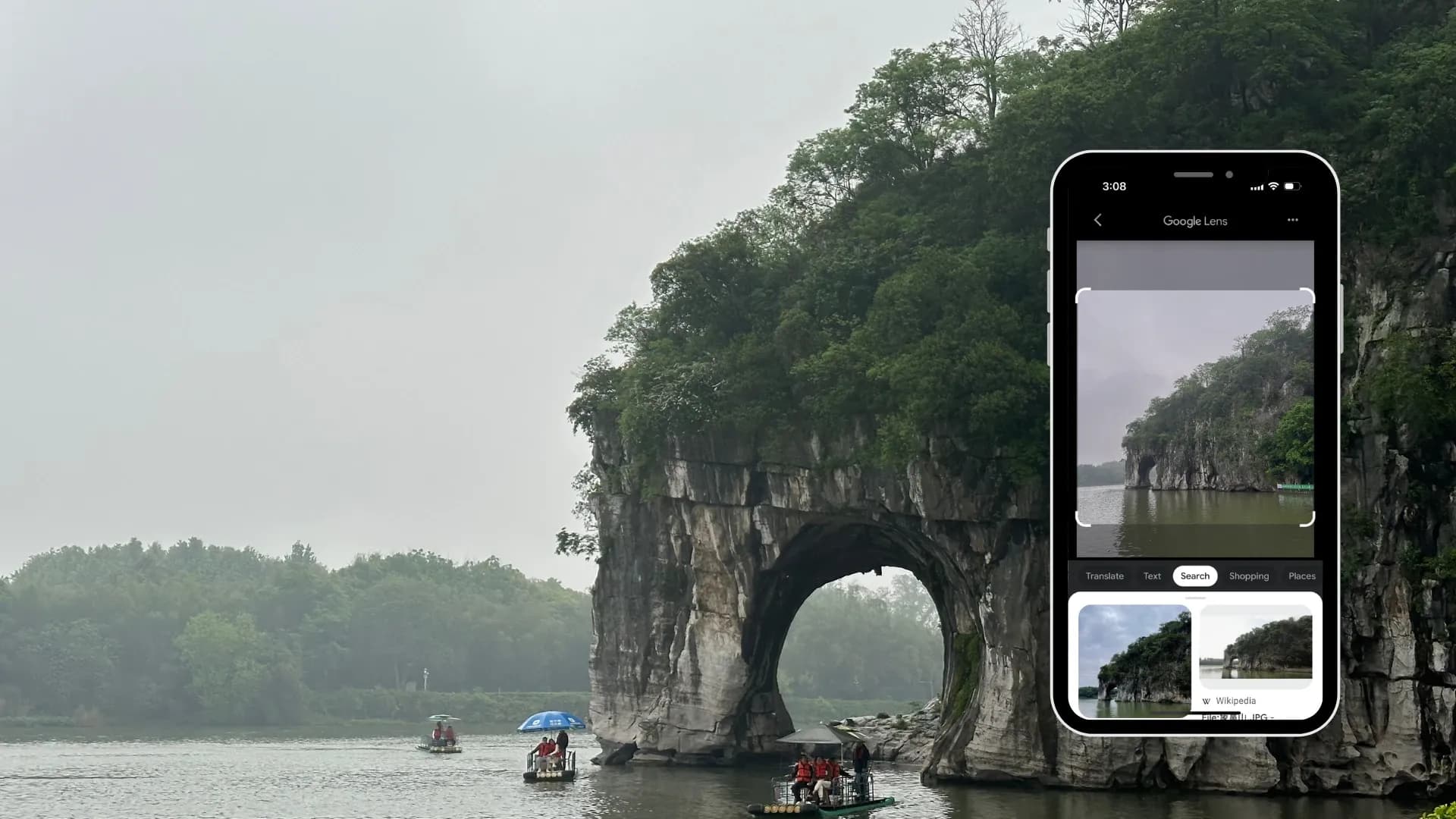
You took a photo of a menu in a Japanese restaurant, a street sign in Seoul or a shelf of herbs in a Sheung Wan dried-goods shop, and now you want to know what it says. Or you have a scanned picture of your parents in front of a building and nobody remembers where it was. Google Lens, which is built into Google Photos, can help with all of these. It looks at the picture and tells you what is in it: the text, the object, the place. Here is what it can do and how to use it.
What is Google Lens?
Google Lens is a visual search tool. Instead of typing words into a search box, you give it a picture, and it uses image recognition to work out what it is looking at and find related information. It is available inside the Google Photos app, in the Google app and in Chrome, so you can use it on photos you took years ago as well as on what is in front of you right now.
Features vary by device, country and language, and Google changes them often, so treat the list below as a guide to what was available at the time of writing.
What Google Lens can do with your photos
Read and copy text
Point Lens at a photo containing text and it will pick out the words so you can select them. From there you can usually:
Copy the text into a message, note or document, which saves retyping a receipt, an address or a recipe.
Search for the words on Google.
Listen to the text read aloud, which helps older relatives with small print.
Call or email straight from a phone number or address in the picture.
Handwriting is harder than print, but clear handwriting often works. That is useful for the notes people wrote on the backs of old photos.
Translate
Lens can translate text in a photo into the language you choose, laying the translation over the image so you see it in context. It supports a wide range of languages, including Chinese, Japanese, Korean and most European languages, which makes it handy on holiday and for reading old letters or certificates from relatives.
Identify places and landmarks
Lens can often recognise well-known buildings, monuments and scenery. Try it on a holiday photo of the Big Buddha on Lantau or an old snapshot of the Star Ferry pier, and it may tell you what it is and show related search results. For restaurants and shops it can sometimes bring up details such as reviews or opening hours.
Recognise plants, animals and objects
Not sure what flower was in the background of a hiking photo, or what breed a neighbour's dog is? Lens will suggest likely matches. It is not always right, but it is a quick starting point.
Find similar products
If a photo shows a piece of clothing, furniture or a gadget, Lens can show visually similar items and where they might be sold online. This is handy when you want to track down a lamp you saw in a café or replace an old item you only have a photo of.

How to use Google Lens in Google Photos
These steps are general and may look slightly different depending on your phone and app version.
Open the Google Photos app.
Find the photo you want and tap it so it fills the screen.
Look for the Lens icon (a small square camera shape) in the row of buttons below the photo. If you don't see it, swipe up on the photo or check the More menu.
Tap the icon. Lens will scan the image and highlight what it finds.
Tap a highlighted area, or drag the corners to select just part of the image, then choose an action such as Text, Translate or Search.
Tips for better results
Use sharp, well-lit photos. Blurry or dark images give weaker results.
Crop to what matters. Selecting only the sign or the plant helps Lens focus.
Check important translations. Machine translation is great for menus, less reliable for legal or medical documents.
Be careful with personal documents. Think twice before scanning ID cards or bank letters with any online tool.
Using Lens on your old family photos
Lens works on any image in your library, including scans of old prints. That opens up some useful tricks: reading faded writing on the back of a print after you snap it with your phone, translating a grandparent's letter written in another language, or finding out which temple or mountain appears in a holiday shot from the 1970s. The better the scan, the more Lens has to work with.
If your family albums are still on the shelf, Capture HK can scan them, up to 6K on our Diamond plan, and upload them to Google Photos for HK$99 so they are ready to explore with Lens and search. See our photo digitisation page and Google Photos upload for details.
Capture Reviews
Related Articles
You may also like these articles






Capture · Our team
Any Questions?
Feel free to contact
our Memory Specialists
Not sure what format you have or how best to handle it? WhatsApp us and one of the team will take a look.
WhatsApp us