How to Share Photos and Albums Across Devices with Google Photos


A family dinner in Hong Kong rarely ends without a group photo, and then comes the familiar problem: one person has an iPhone, another has an Android, Grandma only uses WhatsApp, and your sister in Vancouver wants the full-size version to print. Messaging apps usually shrink photos and videos to save data, so the copy that arrives can look soft on a TV or blurry when printed. Google Photos solves much of this because it works the same way on almost every device. Here is how its sharing features work, and when to use each one.
Why share through Google Photos?
It works across platforms. There are apps for Android and iPhone, and anyone on a Mac or Windows computer can use it in a web browser.
Better quality than chat apps. Photos shared from Google Photos keep the quality they were uploaded in, instead of being squeezed the way many messaging apps do.
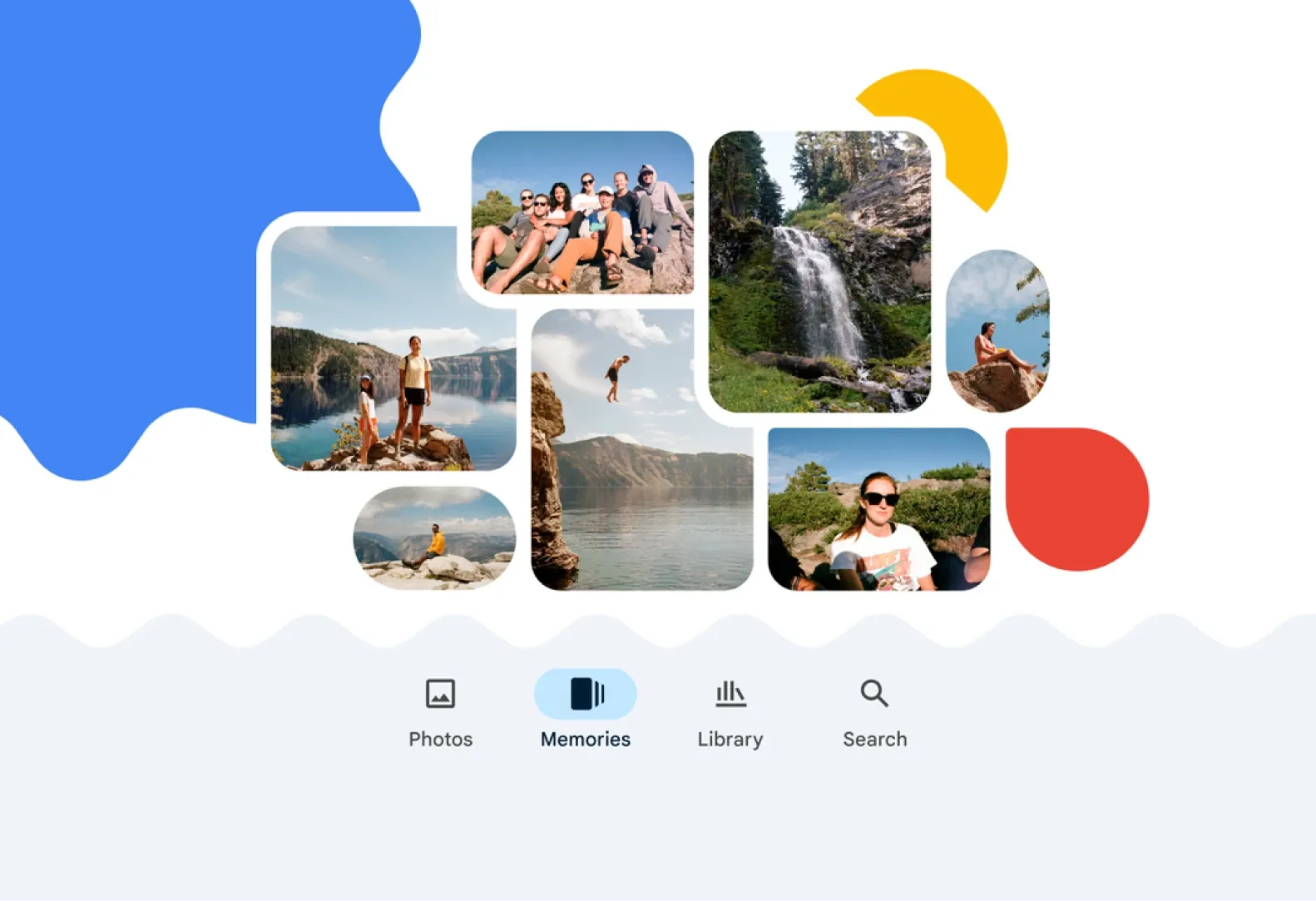
Whole albums, not just single shots. You can share an entire trip or event in one go, and others can add their own photos to it.
Easy for relatives overseas. A link works anywhere, so family in Toronto, London or Sydney can see new photos within minutes.
The menus below are general and were accurate at the time of writing. Google updates the app often, so button names and positions may differ slightly on your phone.
Sharing one photo or a few
Open Google Photos and tap the photo. To pick several, press and hold one, then tap the others.
Tap the Share icon.
Choose a contact who uses Google Photos to send it inside the app, or tap Create link to get a link you can paste anywhere.
Alternatively, pick another app from the share list, such as WhatsApp, Signal or email. Bear in mind the other app may compress the image.
Sending the link rather than the file is usually the best way to keep full quality when the other person only uses a chat app.
Sharing a whole album
Go to the Collections or Library section (the name depends on your app version) and open the album.
Tap the Share option at the top of the album.
Add people by name, email or phone number, or create a link.
Check the album's sharing settings if you want to allow others to add their own photos, comment or like.
A shared album is ideal for events where several people were taking photos: a wedding banquet, a school sports day, a hiking trip on the Dragon's Back. Everyone adds their shots to one place, and nobody has to collect them by hand afterwards.
Partner sharing
Partner sharing lets you give one trusted person, usually a spouse or partner, ongoing access to your photos. You can choose to share everything, only photos of certain people, or only photos from a certain date onward. Your partner can then save the ones they like to their own library, or set the app to save them automatically.
It suits couples who split the photo-taking at family events, or parents who both want every picture of the children without sending them one by one. You can only have one partner at a time, and either of you can stop sharing whenever you like.
Keeping control of what you share
Anyone with a link can view. Treat links like house keys: send them only to people you trust, and turn off link sharing in the album settings if it gets passed around.
Location data. Photos taken on phones often carry location information. Check the sharing settings if you would rather not show where a photo was taken.
Stopping a share. You can remove people from a shared album or delete the link at any time.
Storage: what you get for free
Every Google account comes with 15 GB of free storage at the time of writing, shared between Gmail, Google Drive and Google Photos. That is enough for many people to get started, but a large family archive with videos will soon need more, and Google offers paid plans for extra space. You can also choose a lower upload quality to fit more in, though for scanned family photos it is usually worth keeping the original quality.
Putting old memories into the same place
Google Photos is at its best when all of a family's pictures are in one place, not just the recent phone photos. Many households also have albums from the 1970s and 1980s, boxes of slides, and VHS tapes of birthdays and Lunar New Year gatherings. Once those are digitised, they can sit alongside today's photos in a shared album, searchable and viewable by every relative, wherever they live.
Capture HK can upload your scanned photos, slides and videos straight to Google Photos for HK$99 so the whole family can start browsing as soon as the order is done. Find out more on our Google Photos upload page, or see what we scan on our photo digitisation page.
Capture Reviews
Related Articles
You may also like these articles




Capture · Our team
Any Questions?
Feel free to contact
our Memory Specialists
Not sure what format you have or how best to handle it? WhatsApp us and one of the team will take a look.
WhatsApp us