How to Fix Damaged Old Photos? Complete Guide to AI Restoration, Scanning Preservation, and Professional Remedies (2026 Latest)

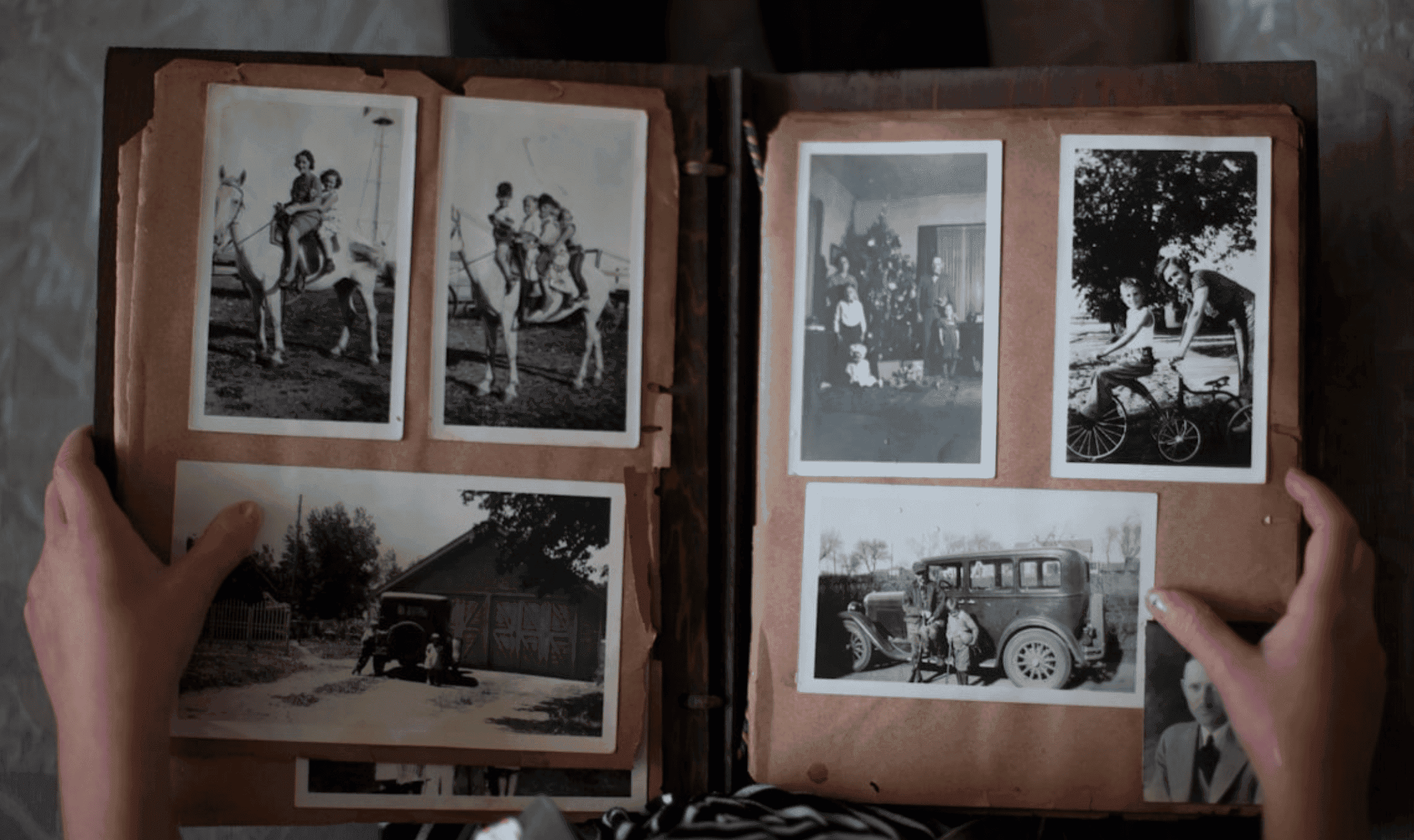
Many families have a box or two of old photo albums containing wedding photos, vintage family portraits, or photos of departed loved ones. When opened, you often find photos that are creased, torn, scratched, or covered in mold spots. In the past, fixing them required professional photo retouchers working stroke by stroke—a time-consuming and expensive process. Things are different now: simply digitize them using a scanner or smartphone camera, then use AI photo restoration tools to automatically repair cracks, fill missing corners, restore colors, and even colorize black-and-white photos in seconds or minutes. Below is a step-by-step guide to the most reliable workflows and tool choices when dealing with damaged old photos.
1. Stop Physical Damage First: Do Not Use Glue or Tape
Before discussing digital restoration, let's address physical photo handling first:
- Stop applying scotch tape or glue directly onto photo surfaces.Glue further damages the photo's emulsion layer. Over time, it turns yellow or hardens, making scanning and restoring even more difficult later on.
Simple protection method:
Wrap photos in black plastic bags, use a vacuum sealer or vacuum cleaner to extract the air, seal with tape, and store in a dry drawer or safe to slow down acidification and mold growth.
True "permanent preservation" still requires digitization: scan them into digital image files, then back them up on both cloud storage and an external hard drive. All restoration steps below are built on the premise of "digitizing damaged photos first."
2. Step 1: Digitize Old Photos (Scan / Smartphone Photo)
1. Scanner (Best Choice)
- Recommended resolution is at least 300–600 dpi. For severely damaged photos or photos intended for large prints, use 600–1200 dpi.
- Before scanning, gently wipe off surface dust with a soft, lint-free cloth to avoid scanning extra "fake scratches."
2. Smartphone Photo (When No Scanner Is Available)
- Place the photo on a flat surface in even lighting to avoid harsh reflections.
- Keep the camera lens parallel to the photo to prevent perspective distortion.
- After shooting, crop out the frame and tabletop using an app or online tool, keeping only the photo itself before uploading it to restoration tools.
Once digitization is complete, remember to back up the original digital file first and work on a copy to keep the original scan safe.
3. Easy Solutions: Free AI Online Tools for One-Click Damage Repair
There are now many "no-registration-required, direct-upload" AI old photo restoration websites ideal for casual home users.
1. Tools like "Restore Old Photos"
Tools like Restore Old Photos, often recommended by Hong Kong and Taiwan media, are typical examples:
- Supports repairing damage, blurriness, yellowing, scratches, and colorizing black-and-white photos.
- Workflow:
- Upload the photo (JPG/PNG format, usually capped under 10MB).
- Click "Restore," and the AI will automatically analyze cracks, stains, and faded areas.
- Preview the comparison in tens of seconds; if satisfied, click "Download" to save the restored version.
- Most platforms feature free, registration-free, and watermark-free use, making them ideal for testing initial results.
2. Free Online Restoration Tools Like jpgHD, Evoto, Pippit, etc.
- jpgHD: Focuses on "lossless HD restoration of old photos," supporting damage repair, colorization, and quality enhancement. The official site advises cropping out irrelevant backgrounds first, leaving only portraits and main subjects.
- AI restoration tools like Evoto / MyEdit / Pippit:Similarly offer an "Upload → One-Click Restore → Download" workflow to automatically remove scratches, restore colors, enhance details, and colorize black-and-white photos simultaneously.
Ideal Scenarios:
- Scattered, minor damage (e.g., fine surface scratches, small tears).
- You are unfamiliar with photo editing software and want a quick version that is "clear and ready to print."
4. Advanced Solutions: AI Desktop Software + Manual Retouching
If you have a large batch of damaged photos or severe damage, online tools may lack fine detail. In such cases, consider desktop software paired with manual retouching.
1. AI Desktop Restoration Tools
Reviews highlight several common choices:
- HitPaw Photo AI / Other AI Restoration Suites: Supports "Quality Enhancement + Scratch Repair + Colorization," batch processing multiple photos to clear blurriness and damage in one click.
- iMyFone UltraRepair: Features a "Photo Repair" mode to boost resolution and correct colors in one click, while offering "Advanced Repair" for severely damaged photos using template images for higher precision.
- Integrated AI Repair Suites: Websites like WinXDVD and Movavi regularly review "Top AI Photo Restoration Software," including free and trial versions to choose according to your needs.
Advantages:
- More stable than online tools with lower privacy risks (files remain local).
- Ability to batch process entire photo albums.
- Some tools support localized adjustments, allowing brush fine-tuning if unsatisfied.
2. Photoshop / Manual Professional Restoration (Auxiliary Use)
If you know basic Photoshop, use AI restoration as a base layer and manual tools to touch up key areas.
Basic workflow recommended by tutorials:
- Duplicate Layer: Always edit on a duplicate layer; never modify the original scan directly.
- Spot Healing Brush: Best for small scratches and stains. Set the brush size slightly larger than the flaw, then click or drag; Photoshop will automatically blend it with surrounding pixels.
- Clone Stamp for Large Tears: Alt-click (Option-click) to sample a clean area, then paint over holes or cracks. Avoid sampling too large an area at once to prevent obvious repeating patterns.
- Adjust Brightness, Contrast, and Levels: Use "Levels" or "Curves" to correct overall exposure. Apply subtle "Sharpening" to enhance clarity while avoiding harsh noise.
This workflow takes time, but it allows you to create a "master restored version" for key photos (such as grandparents' wedding photos or family portraits) to print and frame later.
5. Severe Damage: What to Do with Missing Corners and Major Tears?
Some old photos are missing a corner or torn wide open down the middle. Although AI can infer content, keep this in mind:
AI-generated parts are "plausible fills," not historical restorations.
Where half a face is missing or a portion of clothing is gone, AI will complete them based on trained models. They will look convincing, but may not be 100% identical to the original scene.
Recommended Approach:
- Run an automatic repair with AI tools first to see the general result (try damage repair models on Restore Old Photos, jpgHD, or Replicate).
- Decide if a professional retoucher is needed. If the restored result is generally clear and only minor details are imperfect, it might be acceptable. If the photo holds extreme sentimental or historical value (such as the only surviving photo of an ancestor), take the scanned file and AI restoration result to a professional retoucher for manual digital painting.
- Keep both the original scan and the restored version. Preserve the raw scan (with damages) alongside the AI restored version. If better tools emerge in the future or family members want to view the original state, it can be re-processed anytime.
6. Post-Restoration: Long-Term Preservation and Sharing
After completing digital restoration, follow these follow-up steps:
- Multiple Backups: Save files across your computer hard drive + external hard drive + cloud storage (e.g., Google Drive / iCloud) in at least two different physical locations.
- File Formats: Save restored files in PNG or high-quality JPEG format to avoid repeated compression artifacts.
- Physical Prints: Print selected representative photos, place them in frames, or create a photobook for family members or future generations.
Summary: Save the File First, Restore Second
- Stop using tape or glue on physical photos; store them properly in a dry place.
- Digitize them as soon as possible via scanner or smartphone camera.
- Minor damage: Try free AI online tools first (Restore Old Photos, jpgHD, Pippit, etc.).
- Severe damage or large volumes: Consider AI desktop software + Photoshop retouching, or hire a professional retoucher if necessary.
- Always create multiple backups after finishing to avoid losing them again.
Preserve Precious Memories Forever: Capture Album Digitization Service
Do you have a full box of precious old photos, but worry they will fade or get damaged over time? If you want to digitize these cherished memories for easy sharing and preservation, Capture HK provides professional photo album digitization services, helping you effortlessly convert these precious moments into high-quality digital files for eternal preservation!
Capture HK utilizes high-quality scanning equipment to ensure that scanned photos are clear and detailed, restoring their original colors and details. Capture HK offers a variety of file formats, making it easy to view and share across different devices. Most importantly, we value your memories—all photos undergo strict handling and preservation processes to keep your memories safe and secure, giving you total peace of mind.
The Frame Digital Photo Frame
Want to relive your digital photos often? Capture's "The Frame" digital photo frame is designed to do just that. It brings countless precious memories together, showcasing the most treasured moments of your life.
The Frame features an elegant design and a high-quality display screen, along with user-friendly functions that let you easily manage and display your photos. You can digitize your albums and photos, store them in The Frame, and enjoy these precious memories anytime, anywhere.
Whether placed in the living room, bedroom, or office, The Frame adds a touch of warmth and personality to your space. It is not just a beautiful decoration, but a valuable gift that brightens your daily life.
Shop The Frame now and relive your cherished memories every day!
Shop Now
Sources
Capture Reviews
4.9