How to Scan Photographs: The Ultimate Guide to Digitizing Your Physical Memories

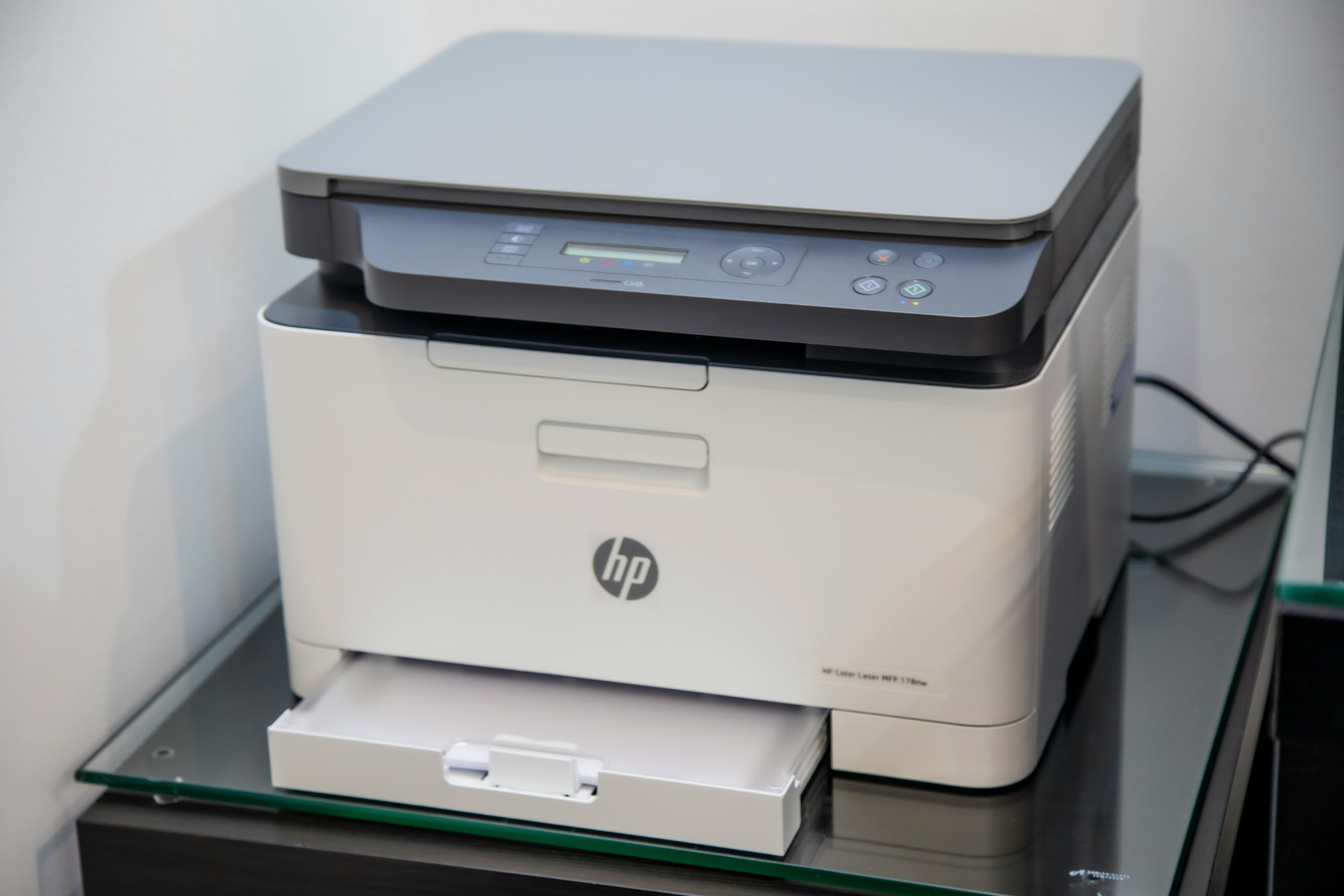
Scanning photographs and converting physical photo prints, vintage slides, and delicate albums into high-quality digital files is the single most effective action you can take to safeguard family history against physical deterioration, water damage, and accidental loss. Over time, physical prints naturally fade, yellow, and curl due to humidity, environmental exposure, and chemical breakdown. By digitizing your photo collection, you arrest this physical decline while making your cherished memories effortlessly searchable, shareable, and viewable across all modern digital devices. Depending on the volume of photos you possess, your budget, and the time you wish to invest, several distinct scanning approaches exist. This comprehensive guide explores the four primary ways to scan photographs—from professional local services like Capture HK to DIY smartphone apps, desktop flatbed scanners, and high-speed batch hardware—while outlining essential post-scanning organization and preservation strategies.
Method 1: Professional Digitization Services (Best for Large Collections & Archival Quality)
When managing hundreds or thousands of loose prints, delicate vintage heirlooms, or fragile adhesive photo albums, scanning them individual image by individual image at home can take weeks of tedious, repetitive labor. Professional photo digitization services eliminate this hassle, utilizing commercial-grade hardware and specialized handling to deliver maximum image fidelity without risking damage to fragile originals.
The Premier Choice in Hong Kong: Capture HK
In Hong Kong, Capture HK (Capture.hk) stands out as a leading professional provider specializing in scanning physical media—including photo prints, delicate photo albums, video tapes, and glass slides—into pristine, high-resolution digital files.
Key Advantages of Capture HK:
- Proprietary Non-Destructive Scanning Technology: Traditional scanners require peeling physical photos out of sticky album pages, which frequently tears delicate paper backings or ruins image surfaces. Capture HK uses non-destructive scanning technology that can digitize entire photo albums page-by-page without removing a single photo.
- Archival Resolution & Detail Capture: Photos are digitized at professional optical resolutions, capturing subtle color nuances, shadow details, and sharp edges in flexible digital formats suited for archiving or printing.
- Automated Color Restoration: Over time, physical prints develop reddish, yellowish, or faded tones. Capture HK’s digitizing pipeline applies smart color restoration algorithms to restore original color balance and vibrancy.
- Secure Local Handling: Precious family heirlooms are processed in a secure, climate-controlled local facility in Hong Kong, avoiding the risks associated with shipping physical media overseas.
- Seamless Cloud & USB Delivery: Digitized files are delivered via secure Google Photos integration or high-capacity USB flash drives, making them immediately accessible across smartphones, tablets, and computers.
How the Service Works:
- Gather & Drop Off: Collect your loose photo prints, bound photo albums, or framed pictures and bring them to a Capture HK service center or touchpoint.
- Professional Digitization: Technicians clean, inspect, and scan each item using high-speed optical hardware calibrated for true-to-life color reproduction.
- Download & Share: You receive a notification to preview and download your organized digital files directly to your preferred devices or cloud storage, alongside the safe return of your original physical photos.
Method 2: Smartphone Photo Scanning Apps (Fastest DIY Solution for Small Batches)
If you only need to scan 10 to 20 loose photographs and want a fast, free solution, your smartphone camera can act as a remarkably capable scanner when paired with dedicated scanning applications.
Note: Taking a standard photo using your phone's native camera app usually introduces harsh lighting reflections, uneven shadows, and trapezoidal skewing. Specialized scanning applications eliminate these issues automatically.
Recommended Smartphone Scanning Apps
- Google PhotoScan (iOS & Android): Free and highly efficient. The app prompts you to align four guided target dots over the photograph, taking multiple angled shots to stitch together a single digital photo completely free of surface glare.
- Photomyne (iOS & Android): Ideal for batch scanning loose prints. You can place 3 or 4 photos on a flat table at once; capturing one photo allows the app to automatically detect borders, crop individual photos, straighten skewing, and save them as separate digital image files.
Step-by-Step Instructions:
- Find Indirect Natural Daylight: Place your photo flat on a smooth surface near a large window. Avoid direct sunlight or harsh overhead artificial lights that cause hot spots.
- Launch the Scanner App: Open Google PhotoScan or Photomyne.
- Position Your Smartphone: Hold your phone directly above the physical print, keeping the lens as parallel to the photo as possible.
- Follow Prompts to Eliminate Glare: Align your camera with the guided dots on screen. The software will automatically merge the captures to neutralize glare and straighten perspective.
- Export & Save: Export your finalized digital scans directly to your device's photo gallery or connected cloud storage (e.g., Google Photos, iCloud).
Method 3: Desktop Flatbed Scanners (Best DIY Option for Complete Control)
For photographers, collectors, and hobbyists who want complete manual control over resolution settings (DPI), color calibration, file format selection, and precise cropping, a dedicated desktop flatbed scanner (such as an Epson Perfection or Canon CanoScan) remains the gold standard for home scanning.
Optimal File & Scanning Settings
- File Format Selection:
- JPEG: Ideal for general viewing, everyday sharing, and minimal file sizes.
- TIFF: Preferred for archival preservation and extensive image editing/restoration in software like Adobe Photoshop.
- Resolution (DPI - Dots Per Inch):
- 300 DPI: Standard resolution for 1:1 screen viewing and digital sharing.
- 600 DPI: Archival standard; enables enlarging a 4x6 photo to an 8x12 print without quality loss.
- 1200 DPI: Recommended for tiny prints (e.g., wallet photos, stamp-sized prints) that need significant enlargement.
- Color Bit Depth: Select 24-bit Color.
Step-by-Step Instructions:
- Clean the Scanner Bed: Thoroughly wipe the scanner glass with a microfiber cloth and a mild glass cleaner to prevent dust specks on your scans.
- Dust the Physical Photo: Gently brush dust off the photo surface using a soft cosmetic brush or rubber air blower (avoid paper towels, which can scratch delicate photo surfaces).
- Position the Photograph: Place the photo face down on the glass platen, aligning it with the marked corner alignment guide.
- Preview & Adjust: Open your desktop scanning software (e.g., Epson ScanSmart or Apple Image Capture). Click Preview, set your crop area, select your file format (JPEG or TIFF), and adjust resolution to 600 DPI.
- Scan & Save: Execute the scan and save the digital file into an organized folder on your computer.
Method 4: Auto-Feed High-Speed Photo Scanners (For Mid-Sized Personal Projects)
If you have 200 to 500 loose, undamaged 4x6 prints and prefer doing the work yourself at home, a dedicated high-speed sheet-fed photo scanner (such as the Epson FastFoto FF-680W) offers an efficient bridge between flatbed precision and professional service speed.
Step-by-Step Workflow:
- Prepare the Stack: Sort your physical photos by size (e.g., group 4x6 prints together). Ensure prints are free of tape residue, sticky glue, or staples.
- Load the Tray: Place a stack of up to 36 loose photos into the feeder tray.
- Configure Output: Set target file preferences (format, DPI, auto-enhancement options) in your desktop software.
- Batch Scan: The machine feeds photos through at a rate of approximately one second per print, automatically cropping, rotating, and saving each photo as a high-resolution digital file.
Post-Digitization: Organizing, Restoring, and Backing Up Your Photo Archives
Scanning your physical photos is only the first step; properly organizing and backing up your newly created digital image library guarantees long-term accessibility and peace of mind.
1. Standardized File Naming
Rename your digital image files using a structured format so they automatically sort chronologically and logically:
YYYY-MM-Location-Event_001.ext (e.g., 1995-08-HongKong-FamilyVacation_001.jpg).
2. AI-Powered Photo Restoration
For digitized photos exhibiting scratches, cracks, or color degradation, utilize modern AI photo enhancement tools available in Google Photos, Apple Photos, or specialized desktop software to sharpen blurred details and rebalance faded colors.
3. Implement the 3-2-1 Archival Backup Strategy
To ensure your scanned photo archives survive hardware failures, corruption, or disaster, adhere strictly to the 3-2-1 Backup Strategy:
- Keep 3 total copies of your digital photo files.
- Store them across 2 different storage media types (e.g., your computer's internal storage and an external USB drive).
- Keep 1 copy off-site in secure cloud storage (such as Google Photos, iCloud, or Dropbox).
Preserve Your Precious Memories with Capture’s Photo Album Digitisation Service
Do you have a box full of old photographs, worried that they may fade or get damaged over time? Now, you can preserve these treasured memories by digitising them with Capture.HK’s professional photo album digitisation service. Our service allows you to convert your old photos into high-quality digital files, ensuring they are safely stored and easily shareable.
At Capture.HK, we use high-resolution scanning technology to restore your photos with sharp details and vibrant colours, maintaining their original quality. We also offer various file formats, making it easy for you to access and share them across different devices. Most importantly, we handle your photos with utmost care, ensuring they are safely processed and preserved.