What to Do When Old Photos Are Blurry: A Complete Practical Guide from Free AI Restoration to Professional Software (2026 Update)

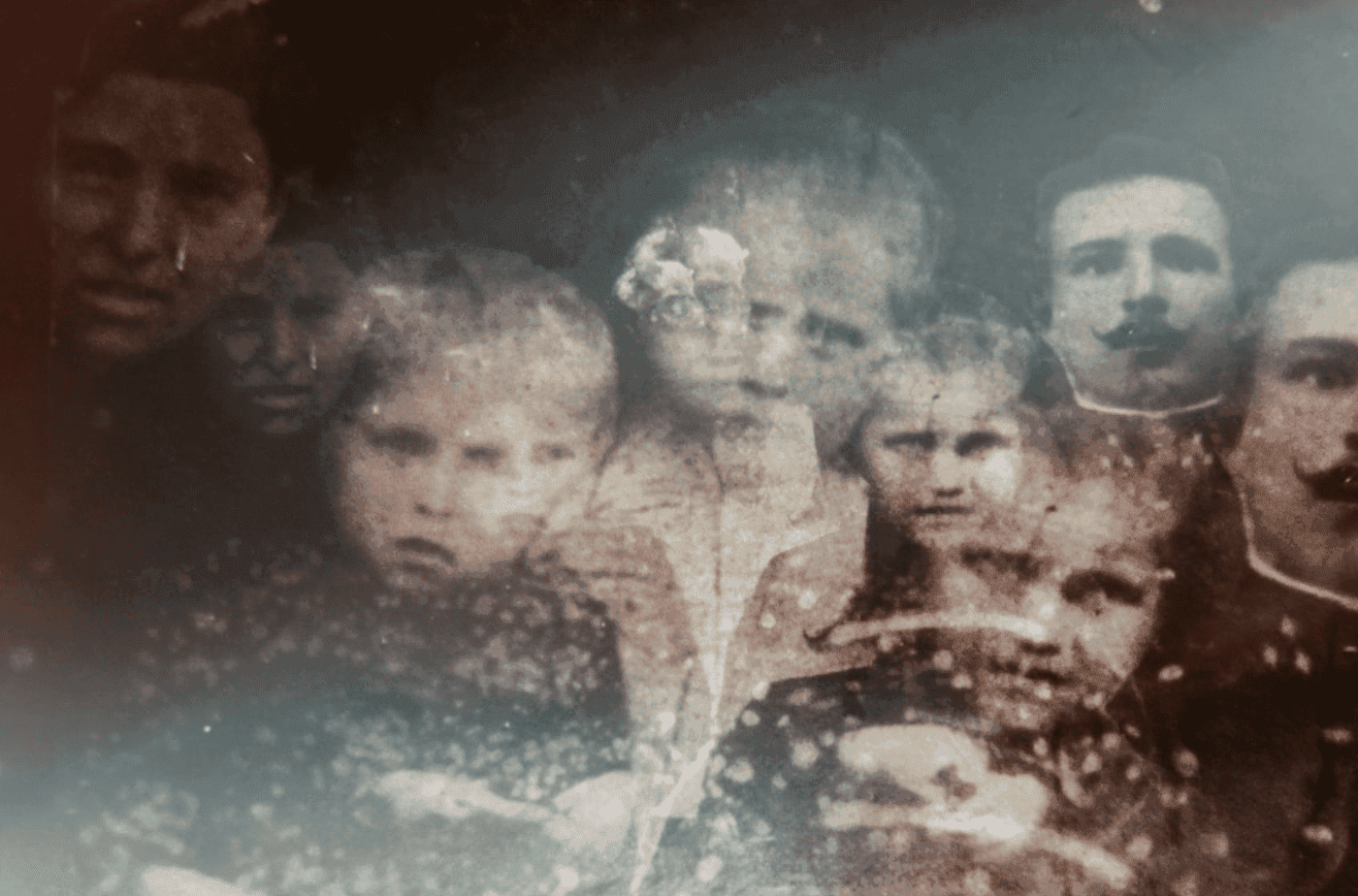
What to Do When Old Photos Are Blurry? The Complete Practical Guide from Free AI Restoration to Professional Software (2026 Updated)
Meta Description: Digging through old albums often reveals yellowed, faded, or completely unrecognizable photos—while memories taken on older phones are frequently out of focus with heavy noise. Fortunately, in 2026, you no longer need to manually retouch images pixel by pixel. Modern AI tools can sharpen blurry images, remove scratches, and auto-colorize photos in seconds. This guide covers three levels of solutions: free online/mobile tools, desktop AI software, and how to handle photos that are truly beyond repair.
1. First, Identify the Type of "Blur"
Before attempting any restoration, it helps to identify the root cause of the blur, as different problems require different solutions:
- Camera Shake / Focus Errors: Soft overall focus or motion blur trails.
- Printed Photo Aging & Physical Wear: Yellowing, low contrast, surface scratches, or paper creases.
- Poor Scanning or Re-Photography Quality: Excessive noise, lens glare, or blurry edges.
- Low Native Resolution: Low-megapixel images from early camera phones or compressed web graphics that pixelate when enlarged.
Note: Most AI restoration tools handle lack of sharpness, digital noise, and physical creases effectively. However, for photos so severely out of focus that facial features are entirely missing, AI can only synthesize what it thinks should be there—it cannot recreate true historical details.
2. Easy Choices: Free Online & Mobile AI Tools for One-Click Clarity
If you don't want to install software and only need to restore a few photos occasionally, browser-based tools and mobile apps are more than enough.
Free Online Old Photo Restoration Platforms
- CyberLink Online AI Photo Restorer: Features a simple 3-step workflow: Upload → Automatic AI Analysis → Download HD Result. It enhances resolution, removes noise, and restores color simultaneously.
- RestorePhotos / Restore Old Photos Tools: Web-based tools that automatically enhance faces, increase clarity, and eliminate scratches right in your browser. Some don't even require an account.
- PhotoGrid & Fotor AI Image Enhancers: Offer free quality enhancement that automatically unblurs, sharpens details, and reduces noise, giving you instant before-and-after previews for social sharing.
Key Advantages:
- No installation required.
- Extremely straightforward operation.
- Free credits available to test results before upgrading.
Mobile Apps: Quick Capture and Instant Repair
- AI Lossless Upscaler Apps: Search for "AI Image Enlarger" or "AI Photo Repair" on the App Store or Google Play. Select a photo, tap restore, let the cloud process it, and view the enhanced result in your album.
- Snapseed (Free Editing App): For offline editing, open Snapseed and navigate to Tools → Details → Adjust Sharpening & Structure. Adjust contrast and curves to improve mildly blurry photos.
- HitPaw Photo AI / FotorPea Web-to-Mobile Apps: Mobile versions of popular desktop restoration tools that support unblurring, colorizing black-and-white photos, and removing scratches with free previews.
Best Suited For:
- Quickly fixing photos taken of physical family albums.
- Instantly restoring blurry travel shots for immediate social media sharing.
3. High-Quality Results: Desktop AI Software & Professional Post-Processing
If you have a large archive of photos or require top-tier image quality, desktop solutions provide superior control and processing power.
Professional AI Photo Restoration Software
- HitPaw Photo AI / Photo Enhancer: One-click removal of scratches, creases, and heavy film grain, combined with natural colorization for black-and-white images. Excellent for batch processing.
- 4DDiG File Repair: Offers general, face-enhancement, and denoising models to turn heavily pixelated photos crisp while fixing exposure issues.
- All-in-One AI Image Restoration Suites: Integrated suites combining upscaling, colorization, denoising, and scratch removal into a single interface. Most offer free trials for batch photo cleanups.
Key Advantages:
- Batch processing support saves substantial time on large photo libraries.
- Dedicated facial recognition AI yields natural skin textures and clear facial details.
- Adjustable processing intensity prevents over-sharpening or artificial looks.
Traditional Photo Editing Software (Photoshop)
For advanced users, combining AI tools with Adobe Photoshop delivers the most refined results:
- Use tools like Smart Sharpen, Spot Healing Brush, and Patch Tool for manual cleanup.
- Handle severe damage manually using layer duplicates and layer masks.
- Recommended Hybrid Workflow:
- Run photos through AI restoration software for an initial automated overhaul.
- Fine-tune faces, logos, and text manually in Photoshop.
This approach is ideal for family portraits, wedding photos, or exhibition prints intended for large-format printing.
4. Critical Step Before Restoration: Digitizing Properly
No matter how advanced the AI is, its output depends on the quality of your initial digital file. Follow these digitization guidelines:
- Use a Flatbed Scanner When Possible: Scanners eliminate ambient reflections, glare, and focus discrepancies common with smartphone photos.
- If Re-Photographing with a Smartphone:
- Shoot under even, diffuse lighting.
- Keep the photo completely flat and align your lens parallel to avoid perspective distortion.
- Crop out extra borders after taking the shot.
- Always Retain the Original File: Keep an unedited backup of the original scan. You can re-process it in the future as AI models continue to improve.
5. Reality Check & Limitations: AI Improves Photos, It Doesn't Time-Travel
While AI restoration marketing seems magical, keep these limitations in mind:
- AI Generates Estimated Details: When a face is completely obscured, AI generates a plausible set of facial features. While it looks natural, it may not look 100% identical to the actual person.
- Severe Focus Loss Has Limited Recovery Potential: Heavily blurred or over-compressed images can go from "completely unreadable" to "passable," but they won't magically become studio-quality portraits.
- Over-Sharpening Causes a "Plastic" Look: Running a photo through multiple sharpening filters consecutively can make skin textures and background lines look unnaturally harsh.
Tip: For cherished family memories, a slightly softer photo that preserves its authentic feel is often better than an over-sharpened, artificial result.
6. Practical Summary: Which Method Should You Use?
- To quickly fix a few family photos for messaging or social media: Use free online AI tools like Restore Old Photos websites, PhotoGrid, or Fotor.
- To restore a smartphone library full of blurry travel or childhood photos: Use desktop software like HitPaw Photo AI or 4DDiG File Repair alongside mobile restoration apps.
- To restore and colorize an old family portrait for wall printing: Combine AI software (for initial enhancement and colorization) with manual Photoshop touch-ups (to fine-tune skin tones, contrast, and grain).
Preserve Your Cherished Memories: Capture Album Digitization Service
Do you have boxes of old photographs deteriorating or fading over time? To preserve these precious memories digitally for easy sharing and lifelong protection, Capture HK offers professional photo album digitization services. Easily convert your physical photographs into high-resolution digital files built to last.
Capture HK utilizes commercial-grade scanning equipment to ensure every scan is sharp, detailed, and faithful to original colors and textures. Files are offered in versatile digital formats compatible with all your modern devices, handled with strict quality control so your family heirlooms remain safe.
The Frame Digital Photo Frame
Looking for a seamless way to display your digitized photo collection daily? Capture's The Frame digital photo frame brings your life’s most cherished moments into your everyday living space.
Featuring a sleek design, high-definition display, and an intuitive interface, The Frame makes organizing and displaying your digitized photo library effortless. Place it in your living room, bedroom, or office to add a personalized touch to your space.
Capture Reviews
4.9