Canva AI Tutorial: Comprehensive Guide to Drawing, Creating Presentations, Image Generation, and More

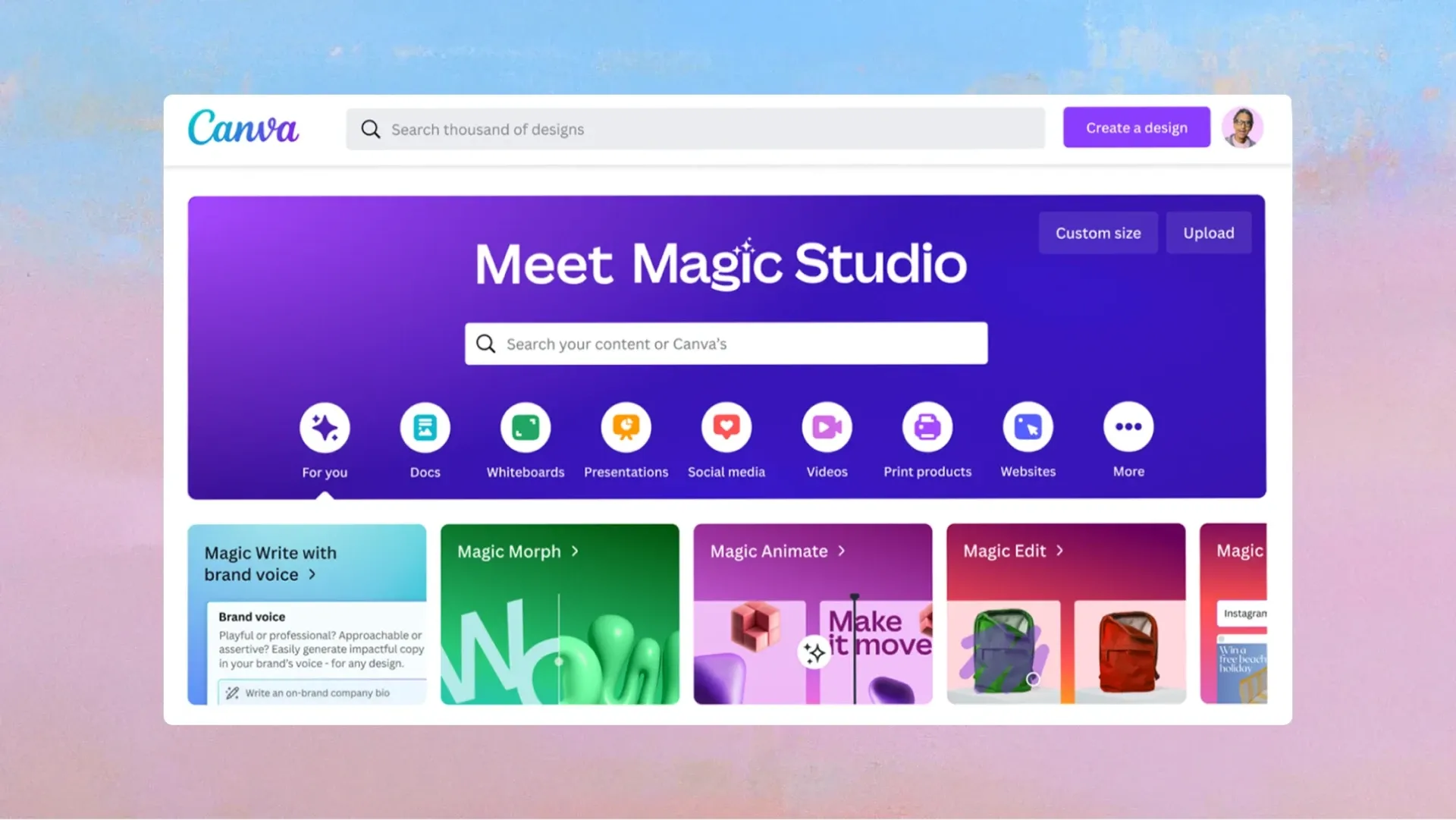
In the digital era, Canva AI offers intuitive AI design tools that help users easily create professional presentations, social media posts, and visuals. It’s not only suitable for beginners but also meets the needs of professionals, enabling everyone to become a designer. Learn now how to use Canva AI to generate images, create presentations, and draw.
Who is Canva AI for?
Canva AI is an intelligent design tool developed for a wide range of users, especially suitable for:
- Design Beginners and Non-Professionals: Canva AI provides a zero-barrier design solution, enabling those without a design background to create professional-quality visual content. Thanks to its intuitive drag-and-drop interface and abundant templates, users can get started without a steep learning curve.
- Educators and Students: Teachers can use Canva AI to quickly create teaching presentations, course outlines, and visualized educational materials. Students can easily complete reports, club promotion posters, or project showcase pages.
- Marketers and Social Media Managers: For those needing large volumes of social media posts, ad banners, or promotional assets, Canva AI significantly boosts efficiency. Its Magic Design feature can quickly generate multiple layout options.
- Entrepreneurs and SMEs: Start-ups and small businesses with limited resources can use Canva AI to quickly set up product landing pages, company websites, or event promotion materials, without hiring a professional designer.
- Content Creators and Freelancers: Bloggers, YouTubers, digital artists, and freelancers can leverage Canva AI to build personal brand sites, showcase portfolios, and create engaging visual content for audiences.
What Features Does Canva AI Offer?

Canva AI covers a wide range of design fields, offering multiple powerful intelligent features:
Core AI Features
- Magic Design: Input a simple text description, and AI will automatically generate multiple design layouts (presentations, posts, etc.). The free version outputs 4 design drafts per request.
- Magic Write: Provide keywords, and AI generates text content quickly—suitable for posts, presentations, and planning drafts. Free users get 25 uses/month.
- Magic Media: Generates images or video from text prompts; supports styles like watercolour, illustration, and 3D. Free users get 50 image generation credits.
Image Editing AI Functions
- Magic Edit & Eraser: Easily remove backgrounds, unwanted objects, or add/replace elements.
- Magic Expand: Intelligently expand image boundaries, auto-generating natural extensions for framing or sizing issues.
- Magic Grab: Precisely extract objects like people or items from backgrounds.
- Background Generator: Create realistic backdrops with just a text prompt.
Advanced Features
- Magic Switch: Instantly transform content between formats, e.g., turn articles into slides.
- Beat Sync: Sync video with background music so transitions and elements match rhythm.
- Canva Code: Build interactive web components (buttons, forms, mini-games) without coding.
- Brand Hub: Manage logos, colours, fonts in one place to maintain brand consistency.
Advantages and Limitations of Canva AI Drawing
Advantages
- Ease of use: Conversational interface, simply type requests and get images.
- Variety of styles: Provides watercolour, illustration, 3D, stained glass, etc.
- Fast generation: Produces options within seconds, much faster than manual design.
- No expertise required: Users can generate professional visuals with just prompts.
- All-in-one integration: Generated images can be directly used in Canva editor.
Limitations
- Usage caps: Free plan includes limited credits—Dream Lab (20/month), Magic Media (50 total). Upgrade required for more.
- Reference images: Free users can’t upload reference images (paid only).
- Complex prompts: AI handles simple prompts well but struggles with complex layered instructions.
- Style updates: Templates/styles are not refreshed frequently; may lack novelty.
- File size limits: Reference image uploads capped at 5MB.
- Inconsistent quality: AI output may vary, sometimes lacking detail or style fidelity.
How to Use Canva AI to Create Presentations
Method 1: Magic Design Quick Generation
1. Open Canva → click “Create a design” → select “Presentation.”
2. Enter topic description (e.g., “Digital Marketing Strategy Presentation”).
3. Select Magic Design → “See all” to view generated layouts.
4. Preview & select from 8 generated styles.
5. Apply selected design to all pages in editor.
Method 2: Convert Docs into Presentations
1. Create new Canva Docs document.
2. Write/paste structured content (with headings, sections).
3. Use “Convert to Presentation.”
4. AI auto-generates slides → choose template, fine-tune fonts/colours.
Advanced Editing Tips
- Layout Adjustments: Choose new styles via “Layouts” menu.
- Personalise: Add visuals, adjust text format, brand colours.
- Export Flexibly: Download as PDF, PPTX, MP4, etc.
How to Generate Images with Canva AI
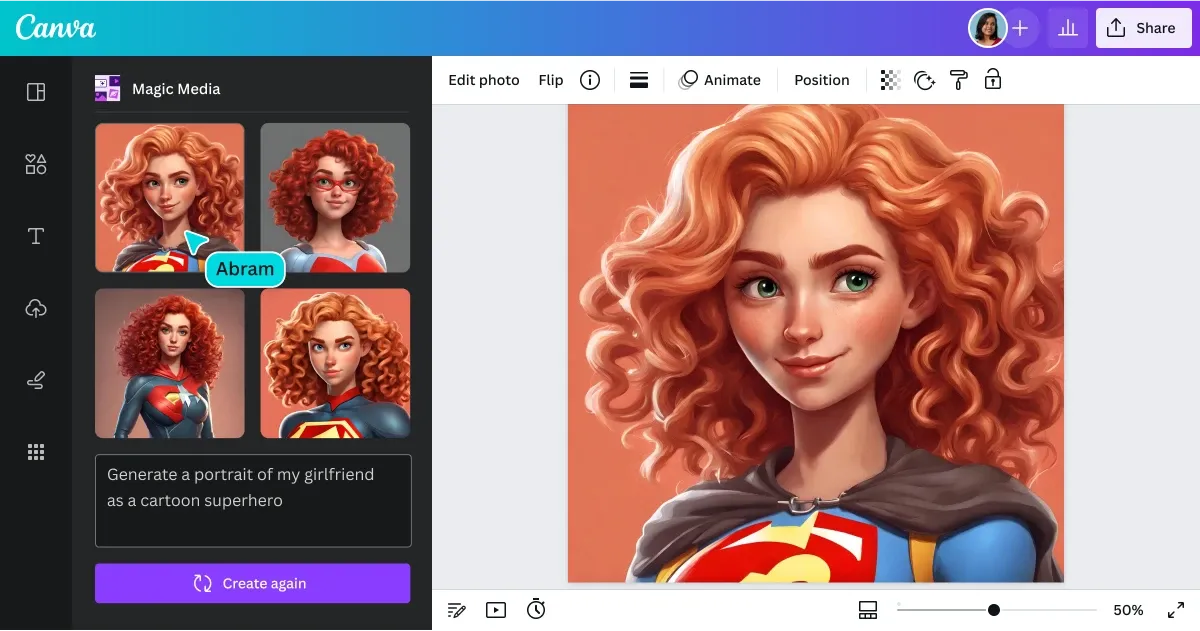
Dream Lab
1. Access Canva AI assistant from homepage.
2. Choose “Generate Image.”
3. Enter text description (e.g., “Beach café under sunset, warm lighting”).
4. Set style & aspect ratio (1:1, 4:3, etc.).
5. AI generates 4 options—choose one.
Magic Media Advanced Generation
1. Open Magic Media → “Elements” → “+ Create your own image.”
2. Select “Image” tab.
3. Input text prompt.
4. Choose style (illustration, watercolour, photography, 3D).
5. Adjust aspect ratio.
6. Generate & refine; option to “Generate More Like This.”
Advanced Features Usage
- Reference Image Generation: Paid users can upload reference images, allowing AI to generate new content based on the reference style.
- Batch Generation: Using the “Generate More Like This” feature, users can create multiple variations in composition and colour scheme based on a preferred image.
- Real-time Integration: Generated images are automatically added into the Canva editor, enabling immediate design work without extra importing steps.
Does Canva AI Have a Free Version? How Much Does It Cost?
Free Plan Features
Canva offers a feature-rich free version that includes the following AI tools:
Core AI Tools:
- Magic Write: 25 uses per month
- Magic Design: Generate presentation and social media templates
- Magic Media: 50 image generation credits
- Dream Lab: 20 image generation credits per month
- Basic translation functions and automatic Alt Text generation
Design Resources:
- Over 500,000 free templates
- Around 1 million free photos, illustrations, and icons
- 5GB cloud storage
- Basic image editing tools
Paid Plans
Canva Pro (Individual Professional Plan)
Pricing:
- Monthly: US$15/month
- Yearly: US$120/year
Advanced Features:
- Magic Write: 250 uses per month
- Unlimited use of premium templates
- Access to 100M+ photos, videos, graphics, and audio
- 1,000 brand toolkits
- Over 25 AI tools
- 1TB cloud storage
- One-click background remover, instant resize, and design translation
- Social media publishing and scheduling
Canva Teams (Team Plan)
Pricing:
- Monthly: US$30/month (for 3 users, ~US$10 per person)
- Yearly: US$300/year (for 3 users)
Team Features:
- All Pro plan features
- Unified brand style management
- Workflow approvals and collaboration tools
- Team reports and analytics
- SSO secure login support
Regional Price Differences:
Canva Pro pricing differs by region, with some areas enjoying discounted rates:
- Hong Kong: US$15/month
- Singapore: SGD$18/month (~HK$105)
- Malaysia: MYR$30/month (~HK$53)
- Thailand: THB$230/month (~HK$51)
Education Version
Canva also offers an education version with all Team plan features, available only to verified education email accounts.
Preserve Your Precious Memories with Capture’s Photo Album Digitisation Service
Do you have a box full of old photographs, worried that they may fade or get damaged over time? Now, you can preserve these treasured memories by digitising them with Capture.HK’s professional photo album digitisation service. Our service allows you to convert your old photos into high-quality digital files, ensuring they are safely stored and easily shareable.
At Capture.HK, we use high-resolution scanning technology to restore your photos with sharp details and vibrant colours, maintaining their original quality. We also offer various file formats, making it easy for you to access and share them across different devices. Most importantly, we handle your photos with utmost care, ensuring they are safely processed and preserved.
The Frame Digital Photo Frame
Want to relive your digital memories every day? Capture’s The Frame digital photo frame is the perfect solution! Designed to showcase your most cherished moments, The Frame allows you to display a lifetime of memories in one elegant frame.
With its sleek design and high-resolution display, The Frame offers an effortless way to organise and enjoy your favourite photos. Simply digitise your photo collection, upload them to The Frame, and enjoy your memories anytime, anywhere.
Whether placed in the living room, bedroom, or office, The Frame adds a touch of warmth and personality to your space. More than just a decorative item, it’s a meaningful gift that brings your treasured moments to life.
Get The Frame today and enjoy your memories every day!
References:
- Mastering Canva AI Illustration Functions – KPN Blog
- Canva AI Alternatives – Cyberlink
- Practical Insights on Canva AI – Vocus
- Complete Guide to Using Canva AI – Adbest
- A Beginner’s Guide to Canva AI Features – Yourator
- Canva AI Programming & Generation Tutorial – Genape AI
- Free Canva AI Features Overview – KSC Think Tank
- 13 Canva AI Functions Explained – Socialgenie
- Testing Canva AI Image Generation – OXXO Studio
- Canva Background Generator Guide – Canva
- Advanced Canva AI Features – LearnAI
- New Canva AI Functions – 99 AI Creator
- Best Alternatives to Canva AI Image Generator – Dreamina Capcut
- Canva AI Alternative Tools Roundup – Jimeng Jianying
- How to Enhance Image Quality with Canva – AnyMP4
- User Experiences with Canva AI – Vocus
- Magic Design Feature Guide – Canva
- Canva Design Tips & Tutorials – Welly Blog
- Canva Pro Features Overview – HKVPN School
- Canva Updates 2025 – Eureka Media School
- Canva Subscription Plans & Pricing – Canva
- Canva Free Commercial Use Explained – BNext
- AI Image Generation Apps – Canva
- Canva AI Tutorial Video – YouTube
- Canva Subscription Options – Canva
- Canva Payment & Billing Explained – Canva
- Best AI Presentation Tools 2025 – AutoPPT
- 7 Must-Know Canva AI Features for E-commerce – Shopline Blog
- Visual Communication Tools with Canva – Canva Solutions
- AI Safety Policy – Canva
- Fixing Blurry Designs – Canva
- Best Graphic Design Software for Social Media Images – Ragic Blog
- Acceptable Use Policy – Canva
Extended Readings:
Capture Reviews
Related Articles
You may also like these articles


Capture · Our team
Any Questions?
Feel free to contact
our Memory Specialists
Not sure what format you have or how best to handle it? WhatsApp us and one of the team will take a look.
WhatsApp us